
Upscale AI Video to 4K - Topaz 2x or Enhance Video up to 8K
Turn a 1080p or 720p clip into 4K with an AI video upscaler. Topaz gives a fixed 2x, Enhance Video picks a target up to 8K. Per-second cost, Studio, API.
 Piotr Olszewski2026-10-228 minPolski
You have a finished clip and it needs to look sharper on a big screen. Kadraris offers two AI upscalers for that job. Topaz Video Upscaler has no settings at all: it multiplies the resolution by two, so a 1080p file comes back as 4K, and it bills $0.11 per second of the source. Enhance Video 1.0 lets you choose the output size, anywhere from 240p to 8K, and one of three quality tiers, with prices from $0.0053 per second. This guide starts with picking the right one, then covers cost, Studio, code and the limits.
Pick the tool by the footage you have
Start from the file in front of you, not from the tool names:
- A 1080p AI clip that should become 4K. Topaz. 1920 × 1080 in, 3840 × 2160 out, nothing to configure.
- A 720p file that should become 4K. Enhance Video with
resolution: "4k". Topaz always doubles, so 720p would only reach 1440p. - A long recording such as a vlog, a video podcast or a conference talk. Enhance Video, which reads files up to 10 GB and 2 hours. Topaz stops at 50 MB.
- Archive footage with film grain you want to keep. Enhance Video on the
professionaltier. - A quick, low-cost check of how a clip upscales. Enhance Video on
lite, which goes up to 4K. - An 8K master. Only Enhance Video, on
standardorprofessional.
Side by side:
| Topaz Video Upscaler | Enhance Video 1.0 | |
|---|---|---|
| Output size | always 2x the source | 240p, 360p, 480p, 540p, 720p, 1080p, 2K, 4K or 8K |
| Tiers | none | lite, standard, professional |
| Accepted input | MP4, MOV, MKV, max 50 MB | MP4, MOV, MKV, AVI, FLV, TS, WMV and others, max 10 GB / 2 h |
| Extra limit | file size only | short side of the source max 1440 px |
| Preserved | duration and frame timing | duration |
Some engine features are not available on Kadraris yet: Topaz's 4x and same-size cleanup modes, and Enhance Video's frame interpolation, scene presets and 10-16-bit output. A longer head-to-head is on Topaz Video Upscaler vs Enhance Video 1.0.
Cost before you press the button
Both tools charge by the length of the source video, not the output.
Topaz counts every started second at $0.11 per second:
| Source | Billed seconds | Total |
|---|---|---|
| one 8 s generated shot, 1080p in | 8 | 8 × $0.11 per second |
| a 30 s reel | 30 | 30 × $0.11 per second |
| six 5 s shots for a music video | 30 | 30 × $0.11 per second |
Enhance Video has a rate that moves with the output size and the tier. The starting price shown above is standard at 720p. Measured against it, standard costs 2x for 1080p, 4x for 2K, 8x for 4K and roughly 32x for 8K. The lite tier is about 27% of the standard rate and professional about ten times it. So a 60-second clip taken to 4K on standard works out to 60 × 8 = 480 times the starting rate. Every resolution and tier is listed on the Enhance Video model page, and the API returns estimated_cost before anything is charged.
For long files, put the Enhance 4K standard line next to the Topaz rate before you decide. When this guide was written, Enhance at 4K standard came out cheaper per second. Run the numbers for your own mix in the AI cost calculator.
One detail catches people out: the amount shown in Studio is a hold, not the bill. Kadraris cannot know the length of a file it has not downloaded yet, so it reserves the price of 120 seconds of footage first (for Topaz, 120 × $0.11 per second). After the job it charges the real number of source seconds, rounded up, and returns the rest. Your free balance has to cover that reserve. If a job fails, you pay nothing.
Running an upscale in Kadraris Studio
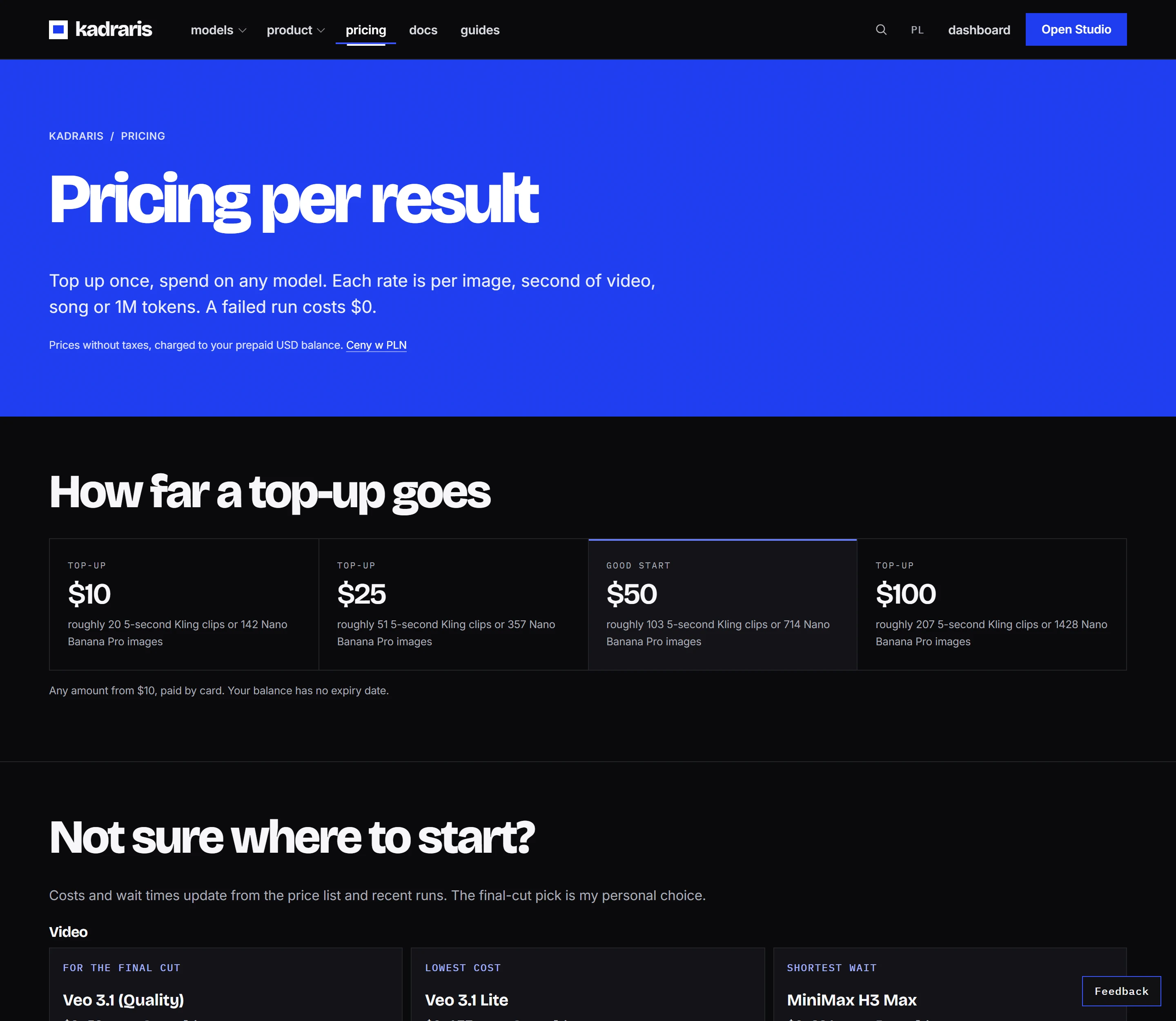
- Create an account and top up the balance. The minimum is $10.
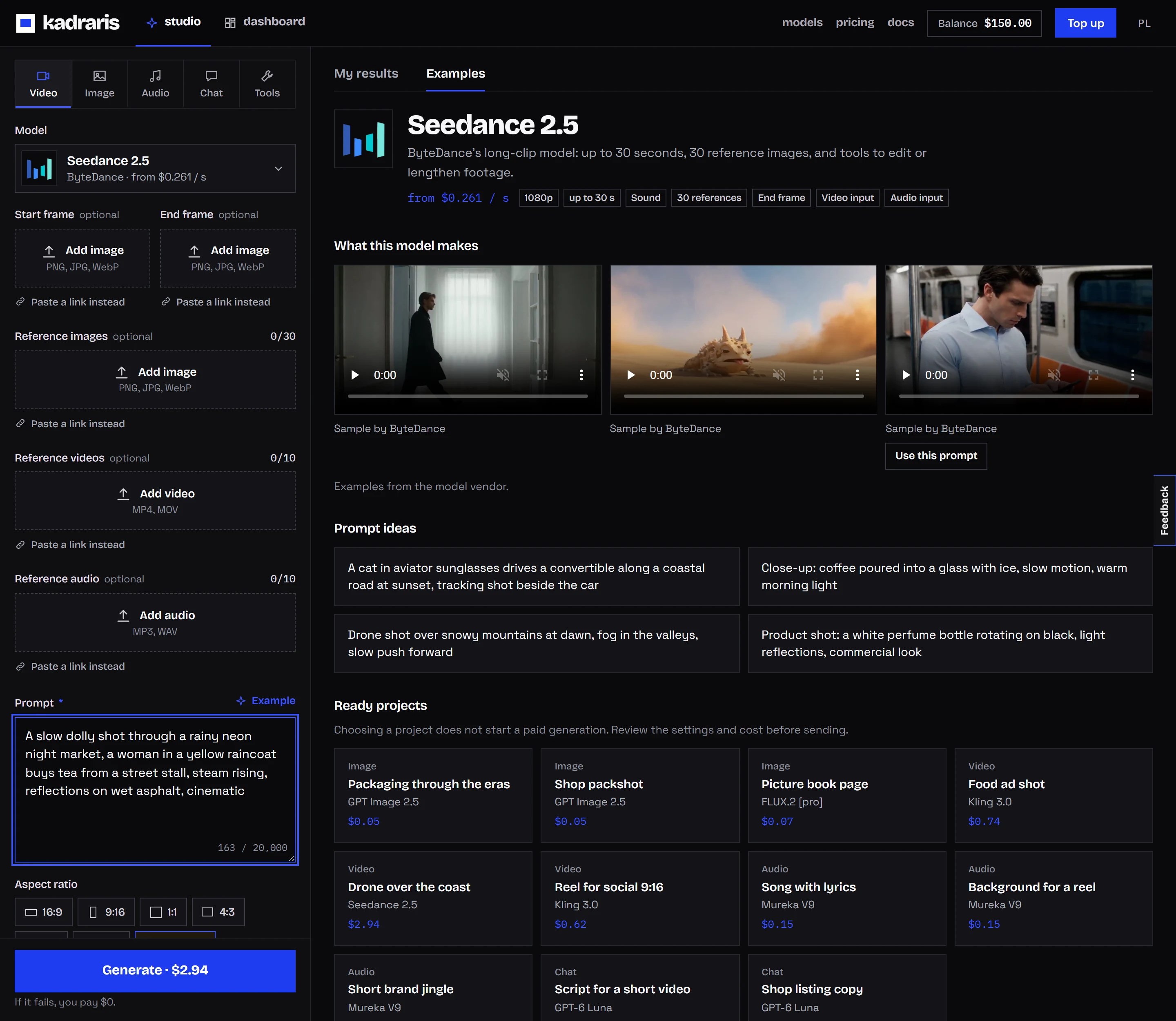
- Open Studio, go to the Tools tab and select Topaz Video Upscaler or Enhance Video 1.0.
- Use Upload file in the Source video (URL) field for MP4 or MOV files up to 25 MB, or paste a public link. Anything bigger has to go in as a link.
- Enhance Video only: choose Resolution (say
4k) and Quality (lite,standardorprofessional). Topaz shows no options. - Click Generate. When the result lands in the gallery, download it, because result links expire after a while.
Sending the job from code
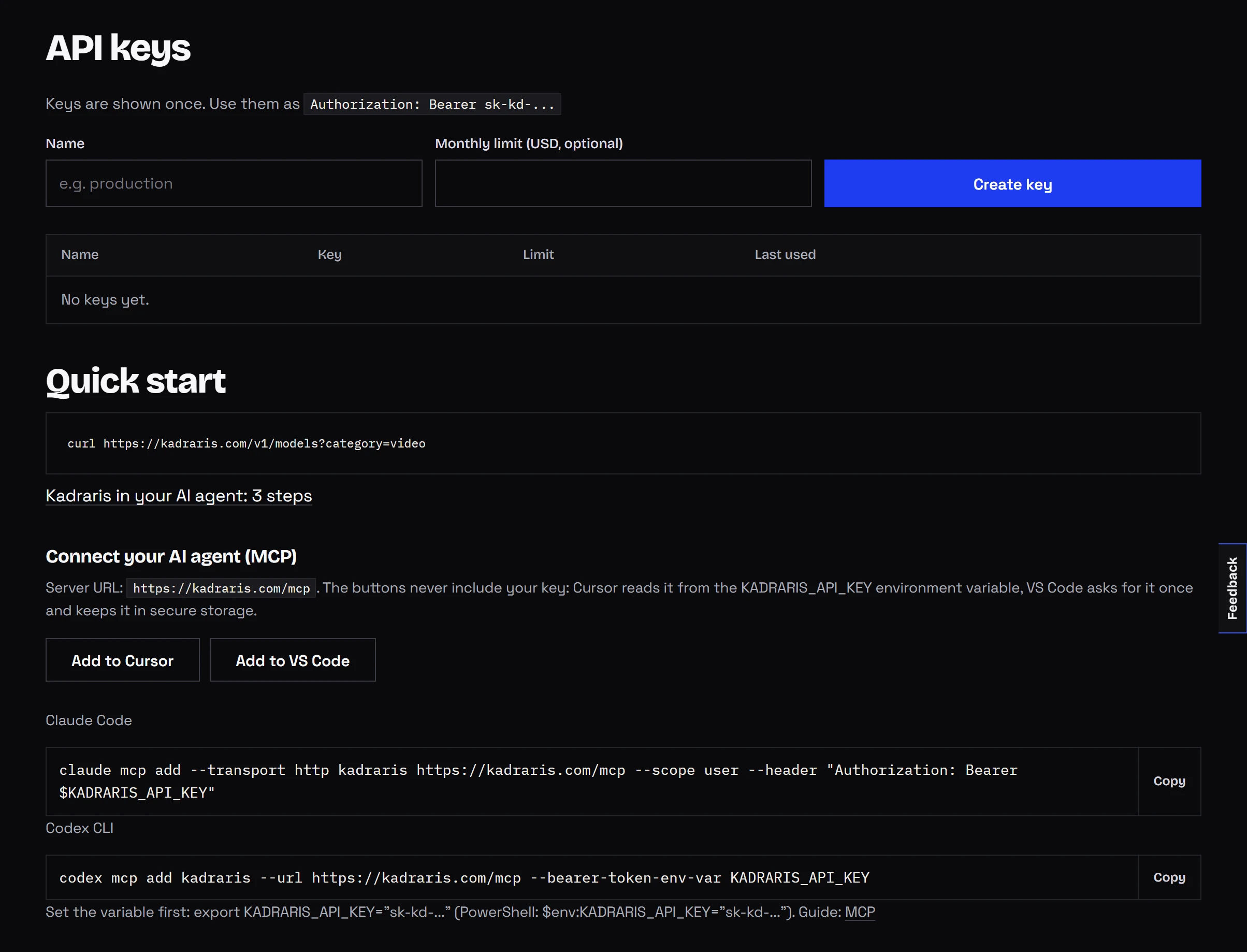
Topaz needs a single input, the link to the video:
curl https://kadraris.com/v1/generate \
  -H "Authorization: Bearer $KADRARIS_API_KEY" \
  -H "Content-Type: application/json" \
  -d '{
    "model": "topaz-video-upscaler",
    "input": { "video_url": "https://your-server.com/video/clip-1080p.mp4" }
  }'
For Enhance Video you add the target size and the tier:
curl https://kadraris.com/v1/generate \
  -H "Authorization: Bearer $KADRARIS_API_KEY" \
  -H "Content-Type: application/json" \
  -d '{
    "model": "enhance-video-1.0",
    "input": {
      "video_url": "https://your-server.com/video/vlog-720p.mp4",
      "resolution": "4k",
      "quality": "standard"
    }
  }'
Skip resolution and you get 1080p; skip quality and the job runs on standard. The completed task, whether you read it with GET /v1/tasks/{id} or delivered to a webhook, holds the file in output (with type: "video") and the final charge in cost.
The usual reason to upscale is a clip you just generated. The Node 18+ script below reads a finished task, passes its video to Topaz while the link still works, waits, and writes the 4K file to disk:
import { writeFile } from "node:fs/promises";

const API = "https://kadraris.com/v1";
const headers = {
  Authorization: `Bearer ${process.env.KADRARIS_API_KEY}`,
  "Content-Type": "application/json",
};

// poll every 10 s until the task is done
async function waitFor(task) {
  while (!["succeeded", "failed"].includes(task.status)) {
    await new Promise((r) => setTimeout(r, 10000));
    const url = `${API}/tasks/${task.id}`;
    task = await fetch(url, { headers }).then((r) => r.json());
  }
  return task;
}

// the clip you generated earlier
const source = await fetch(`${API}/tasks/task_8f2k...`, { headers })
  .then((r) => r.json());
const clipUrl = source.output[0].url;

let up = await fetch(`${API}/generate`, {
  method: "POST",
  headers,
  body: JSON.stringify({
    model: "topaz-video-upscaler",
    input: { video_url: clipUrl },
  }),
}).then((r) => r.json());
up = await waitFor(up);

if (up.status === "succeeded") {
  const res = await fetch(up.output[0].url);
  await writeFile("clip-4k.mp4", Buffer.from(await res.arrayBuffer()));
  console.log("cost:", up.cost);
} else {
  console.log("failed:", up.error);
}
When you upscale a whole batch, pass a webhook_url and skip the polling loop. The full setup with signature checks is in async AI video with webhooks.
Limits worth knowing first
- Invented detail. The model adds detail that looks right, but it is a guess. Small text, faces in the background and number plates can change. Do not use upscaled footage as evidence.
- Motion blur stays. A smeared frame gets bigger, not sharper.
- Compression hurts. Heavily compressed sources give the model less to work with. Upload the original export, not a re-encoded copy.
- Input caps. Topaz takes up to 50 MB. Enhance Video wants a short side of at most 1440 px, so 4K sources are out. Studio uploads stop at 25 MB, links do not.
If you are preparing footage for an edit, the guide on upscaling video before editing covers where in the workflow to do it.
When to skip upscaling and render at 4K
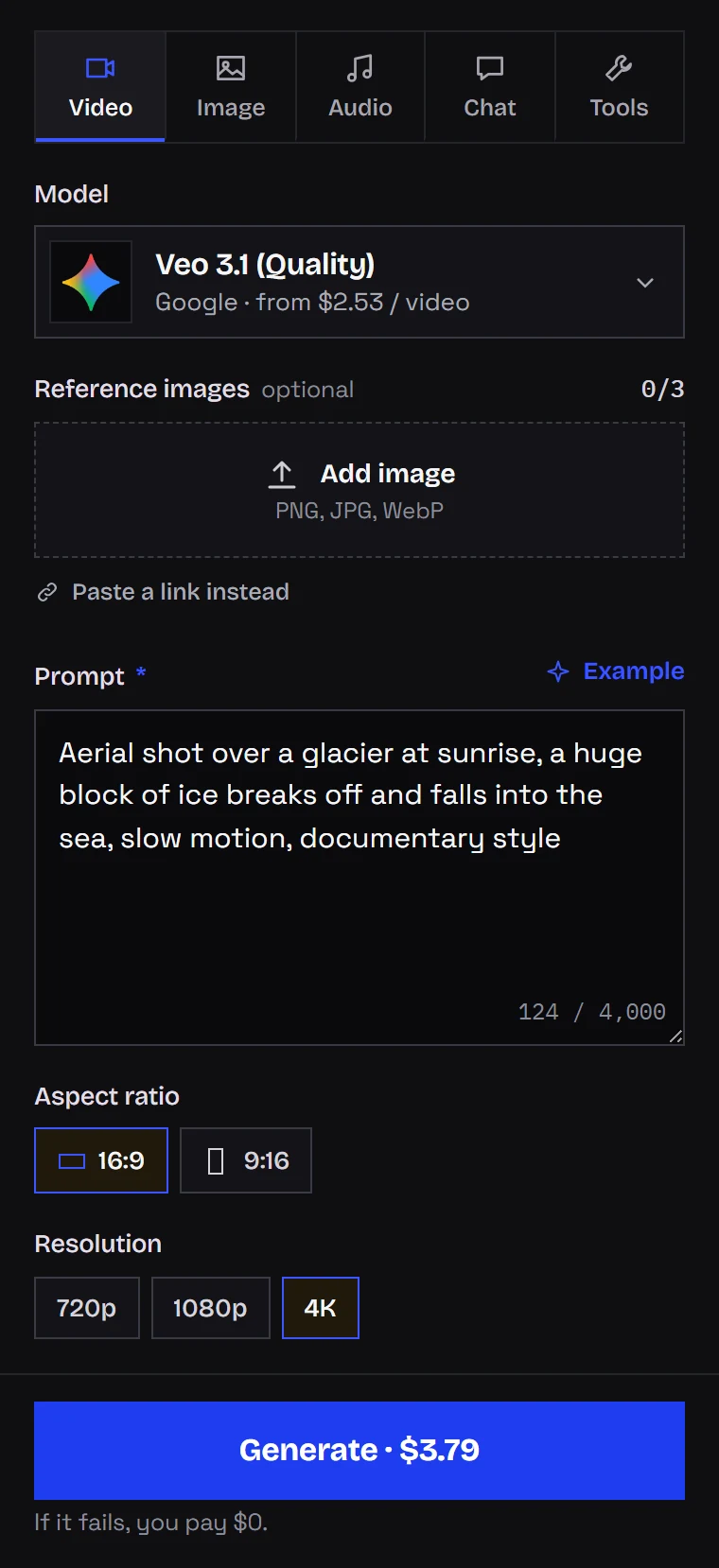
An upscaler is for footage that already exists. If the clip is still to be generated, check whether the model can output your target size directly: Veo 3.1 (Quality) and Kling 3.0 both offer 4k in Studio. A native 4K render usually carries more real detail than an upscaled one, but each attempt costs more. A workable order is drafts at 720p, the chosen take at 1080p, and 4K only for the final cut. The rates are explained in Veo 3.1 API pricing and Kling 3.0 API pricing.
Sample frames from Topaz Labs
Topaz Labs shows its engine with before-and-after pairs. Two of the cleaned-up results are below. On this page they are scaled down to 720p so they load quickly, so judge the look, not the pixel count.
Questions
Which upscaler should I use for a clip I generated with Kling or Veo at 1080p?
Topaz Video Upscaler. A 1080p generated clip is short and small, so it fits the 50 MB limit, and the fixed 2x lands exactly on 4K. Pass the output URL from the finished task as video_url before the link expires.
Does the upscaled file keep the original length and frame rate?
Topaz keeps both the duration and the frame timing. Enhance Video keeps the duration; frame interpolation is not switched on in Kadraris, so it does not add frames.
Why is the hold in Studio higher than my short clip should cost?
Kadraris reserves the price of 120 seconds before it knows the real length. After the job it charges the actual seconds and releases the difference, so an 8-second clip ends up billed as 8 seconds.
Can I send an 8K source to make it even sharper?
No. Enhance Video only accepts sources whose short side is at most 1440 px, and Topaz caps the file at 50 MB. Upscaling works from lower resolutions upward.